When you think of Dropbox, you probably think of cloud storage for files and syncing across computers and phones. Dropbox Password Manager is less well known, but it is a useful free tool.
There are many password managers, but few offer good free options, and you often have to take out a subscription to use it on multiple devices, sync across devices, and store unlimited passwords. 1Password and Dashlane, for example, do not have a free plan. LastPass can only be used on one device type, like a computer or phone, but not both on its free plan. Bitwarden is an exception, and unlimited passwords can be stored and synced across unlimited devices.
Dropbox does not match Bitwarden’s excellent free plan, but it does allow you to install it on three devices, like computers and phones. It syncs across them, lets you store unlimited passwords, has a web browser extension, and iPhone and Android phone apps.
Dropbox Passwords is an alternative to the mainstream password managers, and if the three device limit is too restricting for you, there is a subscription plan that allows unlimited devices. Dropbox Passwords is part of Dropbox storage, and you cannot get one without the other. You can get a free Dropbox account that includes storage and Dropbox Passwords, with some limitations, or a Dropbox subscription that includes 2 GB of storage and unlimited passwords.
Related: How to remember the login details for a website or�?service
Get Dropbox Passwords
To create an account or to log in to the web interface, go to the Dropbox Passwords website on your computer. If you have a Dropbox account for storing and syncing files, click the grid of nine dots on the right side of the search box and select Dropbox Passwords from the menu. To get the app on your iPhone or Android phone, search for it in the app store on your device.
Security is a pain, but necessary, and you have to jump through a few hoops to get the app up and running on your phone and computer. I installed Dropbox Passwords first on a computer, adding the browser extension, but it would have been better to start with the phone app because the first device is used to authorize the second. If your first device is a work computer and your second is a home computer, how do you do that? Luckily, both my Mac and PC were in the same room.
Add your passwords to Dropbox Passwords
You are probably already using a password manager, so switching to Dropbox passwords could save you the subscription fee. A .csv file can be imported, and most, if not all, password managers can export to CSV. I tried it with Bitwarden, and it imported them just fine.
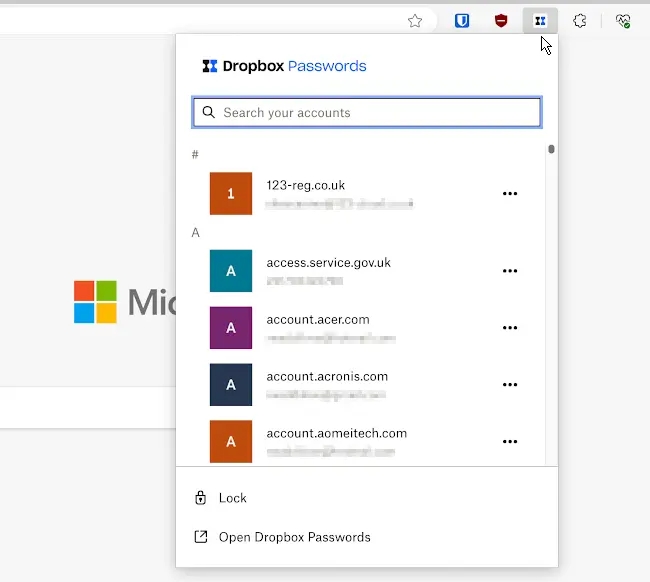
Another way to add passwords to Dropbox Passwords is to sign in to a website. Your login details are automatically stored and a notification appears on the screen confirming this.
You can also manually add entries to Dropbox Passwords. This gives you the choice of adding either a login or a payment card, like a credit card. It is quick and easy.
What is Dropbox Passwords like?
Some password managers let you store items in folders. Dropbox Passwords does not, but it comes with Dropbox cloud storage, which is reasonably secure and you can store documents, notes, images and more in your online storage. I have managed to accumulate 9 GB of free storage over the years, although new members only get 2 GB for free. Paid plans start at 2 TB. So, yes, you can store files, although you must use a different service.
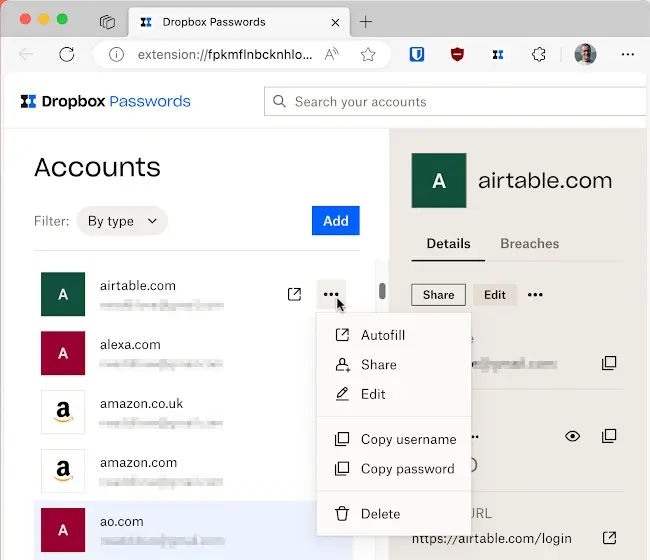
Dropbox Passwords does not have any organizational features, like folders. It simply shows a long list of passwords. My regular password manager enables logins to be organized into folders, like Work, Personal, Finance, and so on. To be honest, I can’t be bothered organizing them, so the lack of the feature in Dropbox Passwords does not bother me. However, some people might want it. If you want a login, you can simply search for it.
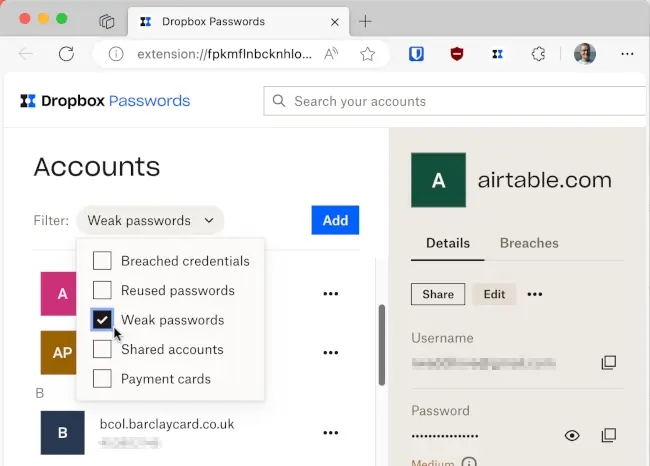
There is a set of filters for passwords and these enable you to find problems. For example, you can filter by breached credentials, reused passwords, weak passwords, shared accounts, and payment cards. If you enable it, Dropbox passwords checks whether your logins have been in stolen on the internet, which is a standard feature that many password managers have these days. It is obviously useful.
The biggest drawback for me is the lack of notes. All logins have a notes box in which you can store notes, but there is not a separate Notes section in Dropbox Passwords. I use notes in my regular password manager to securely store personal information I don’t want to keep in a plain text in a file on disk. As with Files, you could use Dropbox storage, which is pretty secure.
Dropbox Passwords does not come with a separate password generator, but it will suggest a strong password when creating a new login entry.
Conclusion
Dropbox Passwords is a simple and straightforward password manager. It comes with Dropbox cloud storage and can be used with free and paid accounts. A free account is limited to three devices, but is otherwise unrestricted and you can store unlimited passwords. I found it simple, but useful, although you must store some things, like files and notes, separately in Dropbox.
The main problem is that Bitwarden is better. It has more features and I am not tempted to switch to Dropbox Passwords from it. However, it could be used as a backup. I don’t like having all my passwords stored in one place with no backup, and Dropbox imported them all from Bitwarden without any problems.
 RAWinfopages