
Devices and apps make connections with your Dropbox account to access files stored online, save files online, and so on. Are there old apps and devices you no longer use? Remove them.
It is not a good idea to let devices and apps you don’t use have access to your Dropbox cloud storage, files, passwords and other items. For security reasons, it is best that only the devices and apps you use have access. After switching phones and computers, adding apps and services, and removing old software, it is easy to forget what has access to your account. You should check your Dropbox security occasionally and remove any devices and apps you no longer use.
This is an easy process once you know where to look in your account, and it only takes a few minutes of your time. Let’s see how to do it on a Windows PC or Apple Mac using a web browser.
Related: Dropbox stores passwords as well as files. Is it worth it?
Dropbox account menu
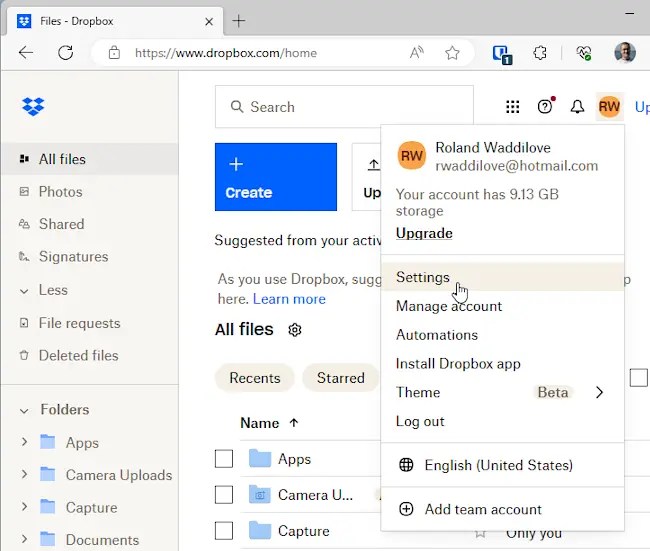
Go to dropbox.com in a browser and sign in if necessary. Click your account icon in the top-right corner of the page to show a menu and then click Settings.
Dropbox security section
When the Settings page appears, click the Security heading to open that section. There are multiple sections on this page and the first one to look at is the list of browsers that are signed into your account. These do not have to be running. They are browsers you recently used and didn’t sign out.

The current browser is displayed and browsers and apps you recently used on other computers or devices. This is not just Dropbox in a browser, Dropbox Password Manager appears here if it is installed, and Dropbox apps on computers and phones. The location is displayed, so you can check that only you have been accessing your account but be aware that a VPN might show unusual locations.
Click the trash can on the right of a device to remove a device. This will not prevent you from using it again, it just means that you must sign in and authorize it again. That would prevent someone else from using the computer or phone to access your Dropbox storage, passwords and other items.

Scroll the page and look further down the security section. I found an old iPhone that was still linked to my Dropbox account from four years ago. I don’t know where that phone is now, so I clicked the trash can icon and removed it. Do you have any old devices listed in your Dropbox account that you no longer have or use? Remove them.

Further down the security section is a list of all the devices that have accessed your Dropbox account, like browsers on your computer, apps on your phone, and so on. If you have had your Dropbox account for a long time, there will be many items here, some of which could be from years ago. I found devices listed from 10 years ago.
This list is of devices that have been unlinked. They cannot access your Dropbox account anymore, which means that they are not a security risk. There is a trash can at the right of each item to remove it from the list. However, when I tried it, it did nothing. Maybe it is a website bug. It may have been fixed by the time you try it.
Check Dropbox connected apps
Apps can be connected to Dropbox so that they can use cloud storage. For example, I have a WordPress backup plugin that stores website backups in my Dropbox storage. Connected apps are useful, but when you stop using them, you might forget to unlink them from your Dropbox account. I am not sure how much of a security risk this is, if any, but I think it is a good idea to revoke permission for apps you no longer use.

Select the Apps tab in Dropbox settings and a list of all the apps with permission to access your storage or files is listed. Click any that you no longer use. I found a Samsung phone from 2013 that was still linked to my Dropbox account. I have no idea where that phone is now. It probably isn’t working anymore, but even so, it is a good idea to disconnect anything you are not using.
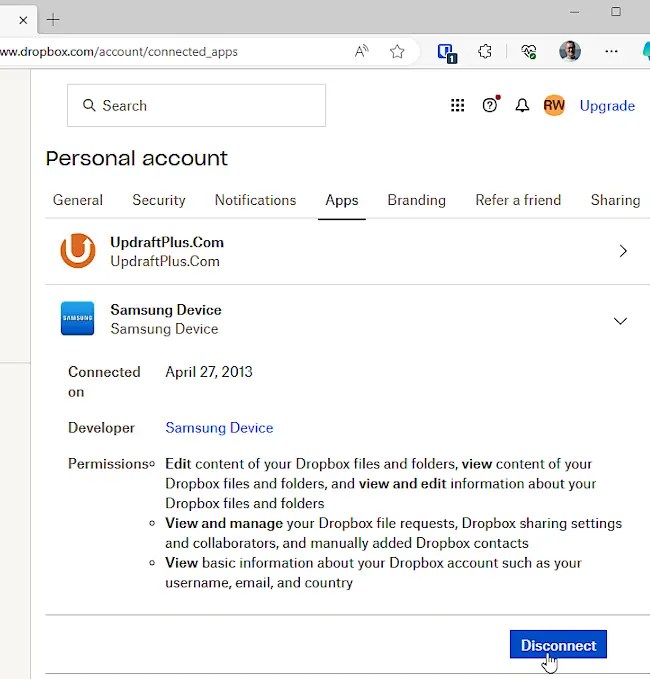
Disconnecting apps and devices does not block them, but if you, or anyone else, try to use them, they will need to jump through a few security hoops to gain access. Unauthorized people won’t have access.
After removing unused devices and apps from your Dropbox account, security will be improved. Some Dropbox accounts limit the number of devices that can connect, so removing unused ones might enable you to add ones you actually use. It’s good to clean up occasionally.
 RAWinfopages