
There are hidden menus in iPhone apps that contain useful functions. Use them to get fast access to common features. Here are the hidden menus of popular web browsers for the iPhone and iPad.
The menus and functions in iPhone and iPad apps are mostly obvious, but some are not. Remember 3D Touch, sometimes called Force Touch, on the iPhone? A light press or hard press on an icon on the home screen would perform different actions.
Pressure sensing screens are no longer used in the iPhone, and were never in the iPad, but you can press and hold on an icon instead, and this performs a similar function. Press an app icon for a second or so, an actions menu appears that contains various functions. Some people are not aware of this feature, others know, but have forgotten it exists because they rarely used it. You should get to know these hidden menus because some of them can be very useful.
What appears on the long-press menu varies from app to app, even when apps perform identical functions. Here I look at the long-press menus available for web browsers on the iPhone and iPad. Some are very dull, but some contain useful functions.
Safari hidden functions menu
Long press the Safari icon on the iPhone and a menu containing several useful items appears. Show Reading List and Show Bookmarks enable you to go straight to those features in Safari, which saves you time and effort selecting buttons and menus. It is not hard to access the reading list or bookmarks, but it does enable you to skip a few tedious steps.

The New Tab and New Private Tab menu functions are also useful shortcuts that skip a step or two and get you where you want to go faster.
I expected the Edit Home Screen menu to let me customize the Safari browser home screen, but it is to edit the iPhone home screen. The exact same function as pressing and holding on an empty space on the home screen. It seems like a pointless duplication of a built in iOS function to me. It is not a shortcut; it is actually one step longer to edit the iPhone or iPad home screen.
Safari’s long press menu offers some useful shortcuts to access features in the browser. It is better than some other browsers, but it is not the best.
Firefox hidden functions menu
Long press the Firefox icon to show a menu with options that enable you to open a new regular browsing tab or a new private browsing tab. They are useful because they save extra steps.
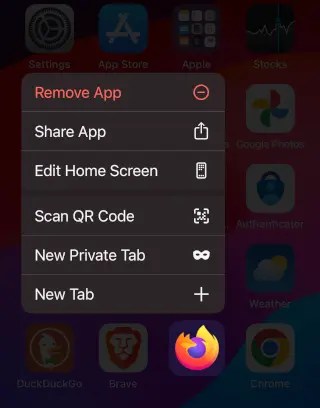
The most useful function on this long-press menu is Scan QR Code. Press and hold on the Firefox icon, tap Scan QR Code, point the iPhone at a QR code and Firefox instantly opens the website in the browser. It is quick, easy, and useful. Although the iPhone Camera app can read bar codes, it is faster to use Firefox long-press menu.
The menu has the pointless Edit Home Screen function for editing the iPhone home screen. Why does this not edit the Firefox home screen instead? The Scan QR Code function is great though.
Brave hidden functions menu
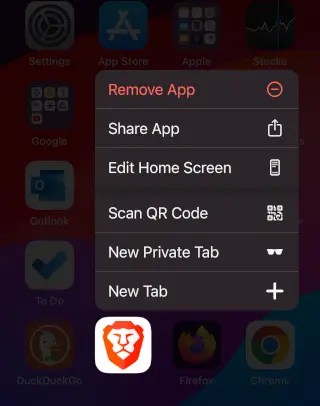
Brave has an identical long-press menu to Firefox. The Scan QR Code menu function is very useful, the options to open a new tab or private tab are moderately useful, and the Edit Home Screen function is pointless. I am beginning to think this is a fixed system menu because all apps have it.
Chrome hidden functions menu
Long press on the Chrome icon to see the best menu of all the browsers here. It is tailored towards search and there are options for a normal search or an incognito browser search.

With other browsers, you can open a new tab and then search from the address box. Chrome goes a bit further by filling the screen with search suggestions. They are not always useful, but when they are, you can search with a tap on one, saving time and effort typing the search query.
Chrome also offers voice search on the long press menu. This saves you from having to type the search query or open the app and fiddle with controls to activate voice search as you would with other browsers.
The best search function on Chrome’s long-press menu is the Lens Camera Search. Long press Chrome, tap Lens Camera Search and the iPhone camera activates. Point at something and tap the button to take a photo.
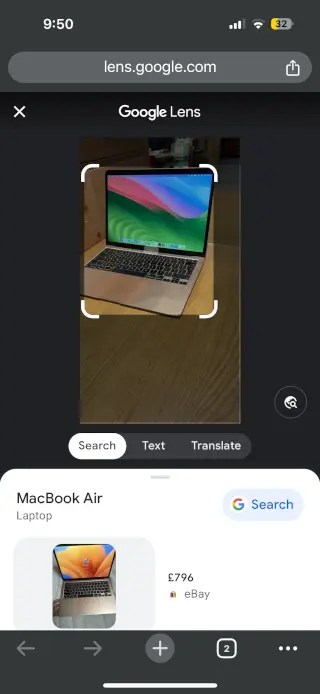
The subject of the photo is automatically identified, and a search is automatically performed. It depends on the photo, and you might see similar photos, similar objects, items for sale in eBay and online stores, and so on. You can extract the text or translate text too.
You can perform photo searches with other browsers, but not this easily or quickly. It is a brilliant feature.
Edge hidden functions menu
Edge long-press menu is similar to Chrome and there are Voice Search and Camera Search menu options. These are very useful on a phone and with one tap you can say what you want to search for or point the phone’s camera at something to get information and related images.
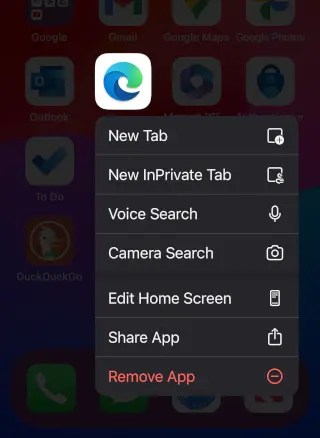
I like Google’s image search better. It depends on what you photograph, but when appropriate, you see shopping-related results. If you see something you like, you can find online stores that sell it. Edge image search, which uses Bing of course, tends to just produce images that look similar, rather than identifying the subject of the photo and searching for it. It is still quite useful.
New regular and InPrivate tabs can be opened from the long-press menu and you can search from the address box. Some recent searches are listed so you can search again, but Google does it better.
DuckDuckGo hidden functions menu
Press and hold on the DuckDuckGo icon and a very short menu appears. It is one of the shortest and there is only one function worth mentioning. If you have been using another app on your phone, like email for example, and have copied a URL to the clipboard, long press on DuckDuckGo and select Paste from Clipboard to go straight to the website. It saves having to open the browser, select the address box, paste in the URL and then go there.
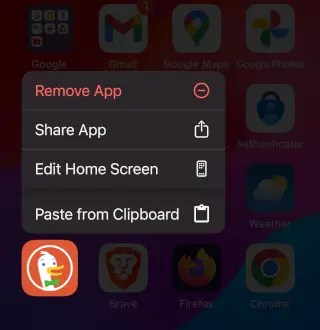
Like Safari, it provides an Edit Home Screen menu function, which does not let you customize the DuckDuckGo browser home screen. It is edit the iPhone home screen. That is pointless.
DuckDuckGo is disappointing because it offers so little on the long press menu compared to the other browsers. You can’t even open a new tab.
 RAWinfopages