If you see an interesting app for your Android phone, you don’t need to install it right now. Add it to a wishlist and install it later. Here’s how to add apps, install them, remove them.
When you are browsing the web, looking at news stories and blog posts, you may come across apps that you would like to try. However, you might not want to stop what you are doing and install them right now. What do you do? Write down the names of the apps? There is no need. Just add them to an app wishlist.
Some apps are large, and some are hundreds of megabytes. If you are on mobile data, you may not want to install an app right now, but you might want to install it later. Add the app to a wishlist so that you do not forget it, and then install it from there, later.
If you see a great game, you might not want to install it until you have finished playing the one you are playing right now. It could be the next game you want to play. Maybe it is too big and you don’t have the storage at the moment. Add it to a wishlist so that you don’t forget it.
There are many reasons why an app wishlist is useful and the Google Play Store provides one on an Android phone. Let’s take a look at how to use the wishlist to remember apps you want to install later. You can view your wishlist and install apps directly from it, view the apps in the store, or remove apps you are no longer interested in.
Browse the store
Open the Google Play Store and find an app that looks interesting and that you might want to try. Not now, but later. On the app details screen, press the three dots in the top right corner to open a menu.
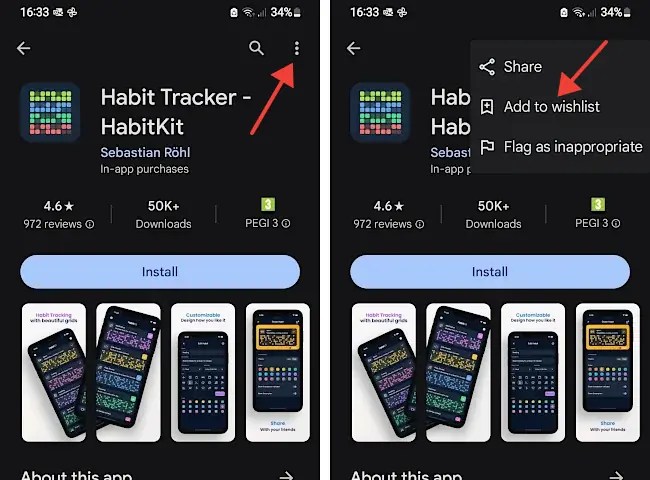
On this menu is Add to wishlist. Press it and it is added to your wishlist. If you open this menu again, the menu item is changed to Remove from wishlist. This is useful if you immediately change your mind, but it is not the way to manage the contents of your wishlist.
Play Store menu
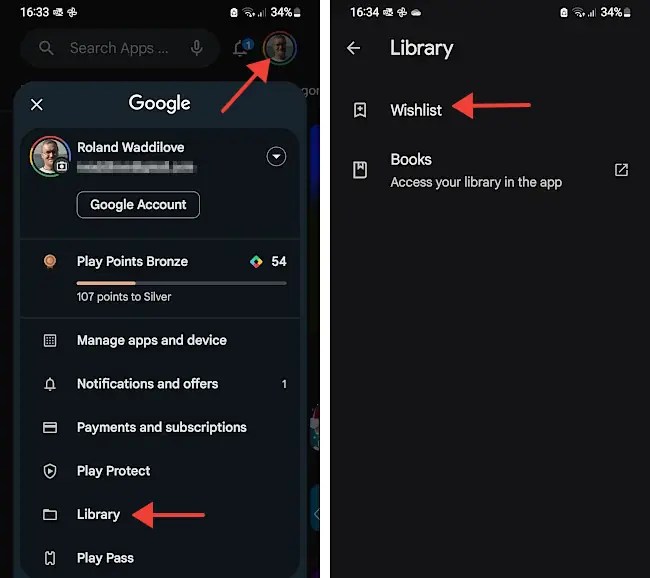
Go to the Google Play Store app home screen and press your account avatar in the top right corner. This opens the app menu. Look down at the list of items and press Library. This is where you will find the wishlist. Press Wishlist on the next screen.
Manage your Play Store wishlist
All of the apps that you have added to your wishlist are displayed. Press an app to open the app’s details page in the Google Play Store. This is useful if you want to check the info, look at the screenshots, and so on.
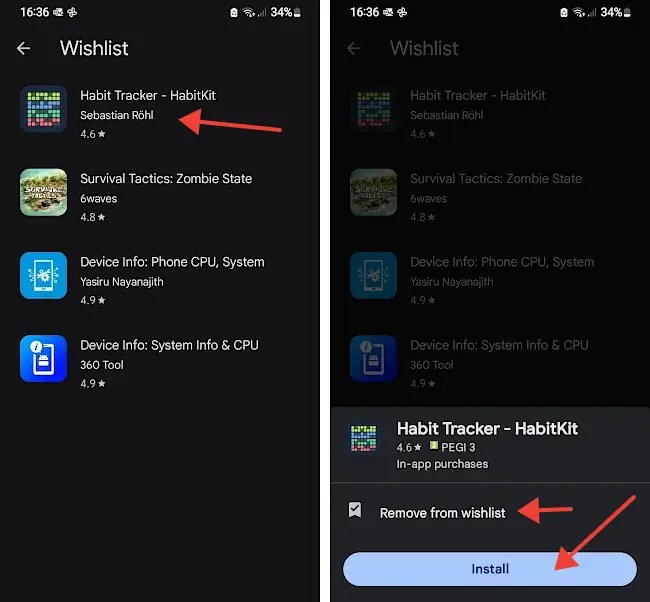
Press and hold on an app to display a menu at the bottom of the screen. This shows brief details about the app, but more importantly, there is an option to remove the app from the wishlist or to install it. Keep apps on the wishlist for as long as you need. It prevents you forgetting about them. When you are ready, you can go through the wishlist and install apps.
I always have a few apps on my wishlist and when I am ready, or bored and want something new and interesting to try, I look at the list and install an app or two.
 RAWinfopages