
If you use the Settings app a lot on your Android phone, there is a way to access common settings faster. Save time. Learn how to use this little known method of accessing phone settings.
Many people access phone settings a lot. For example, to check mobile data usage, turn Wi-Fi on or off, or connect to a particular Wi-Fi network. You want need to turn the phone hotspot on or off, or look at its settings. You may need to check the Bluetooth settings, connect or disconnect a device, and so on.
If you often need to access settings, it is easy enough to go to the apps list screen, find the Settings app, and press it. Then you must search for the section in Settings that contains the setting you want, and then maybe open the subsection. Easy, but long-winded and tedious.
A bit of time and effort can be saved by pulling down from the top of the screen to show notifications. At the top, usually in the top right corner, is a gear icon and pressing it opens the Settings app. It saves you having to find the app icon on your phone.
There is an even faster way to access common settings on an Android phone that saves a lot of time and effort, searching and tapping.
Related: See all Android tips articles
Access settings faster
Swipe down from the top of the screen to show the notifications panel, and at the top are some icons. These vary from phone to phone, but all serve the same purpose. They toggle a feature on and off. (They are also on Android tablets and Amazon Fire tablets too.)
They are customizable, and can be in any order you prefer, so your icons may not be the same as mine. I have the torch, sound, battery saver, Wi-Fi, Bluetooth, and personal hotspot.
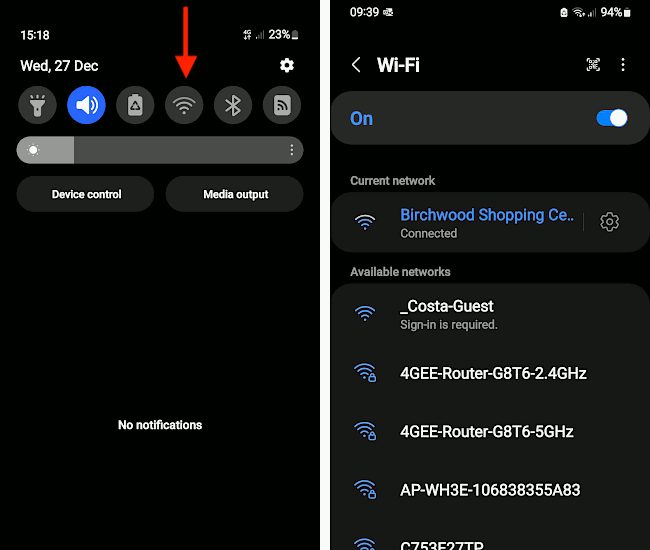
Press and hold on any of these icons and the Settings app is opened at the place where the feature is located. For example, press and hold on the Wi-Fi icon and the Wi-Fi section of the Settings app is displayed. This enables you to quickly select the Wi-Fi network you want to connect to.
Press and hold the Bluetooth icon and the Bluetooth devices section of Settings is displayed. This enables you to see and manage Bluetooth devices.

Press and hold on the battery saver icon and the Power Saving section of the Settings app is displayed. This enables you to quickly access features to customize the power saving features, prolong the battery running time, and see how much time you have left on battery power.
Access more settings
Swipe down from the top of the screen and a single row of quick-access icons is displayed. Swipe down over them and even more icons are displayed. Long-press any of these icons to quickly open the Settings app in the appropriate section. For example, long press the Mobile Data icon, the Sync icon, the Location icon and others to go straight to the Settings section.
Sometimes, long pressing an icon will access settings that are either hard to find in the Settings app, or even show features that are not available elsewhere. For example, long-press the Torch icon and there is a Brightness slider that enables you to choose from five brightness levels for the torch.

I cannot find the Torch app on my phone, and I cannot find Torch settings in the Settings app. Long pressing the Torch icon in the notifications appears to be the only way to access torch settings. I didn’t even know Torch had settings until I long-pressed it. (Not every phone has Torch settings, but some do.)
This is a useful feature to remember. The next time you want to access something in the Settings app, pull down from the top of the screen and long-press an icon.
 RAWinfopages