
Some websites fill their pages with far too many ads and web junk. One of the best ways to avoid unwanted content and get to the text of articles is to use Chrome reading mode. Here’s how.
Some of the websites I visit make reading the content almost impossible. Local news sites are the worst for me. I want to see what is happening in my area, but so much web clutter gets in the way it drives me nuts.
Every couple of paragraphs there is an ad, sponsored item, related content links and images, subscription request and other such junk, it is hard to see the actual content. Some pages take 30 seconds to load because they are so weighed down by junk.
One solution to this is an ad blocker, but if websites don’t make money from ads, they might put up a paywall and start charging to read articles. Even if you do subscribe to a website, they sometimes still show adverts and web clutter. It is so irritating.
An alternative solution is to use Chrome browser reading mode to filter the content on messy web pages, and this is my preference. It does not stop ads and web junk from appearing, but reading mode uses a split window view with the regular web page on the left side and a cleaned-up version on the right side that is a joy to read.
You can ignore the normal web page on the left and just focus on the content on the right. Let’s see how it works. I will be using Chrome browser on a Windows PC, but the Mac is very similar.
Related: How to free up space on your phone that Chrome is wasting
Open the Chrome side panel
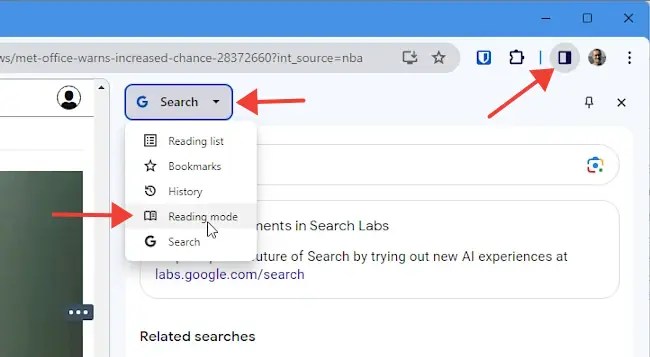
Click the rectangular icon in the top right corner of the Chrome window. It opens a panel on the right side of the browser (there is an option in Settings > Appearance to open it on the left if you prefer.)
Several different types of content can be displayed in the side bar and if Reading mode is not automatically selected, select it in the menu at the top.
View web content in reading mode
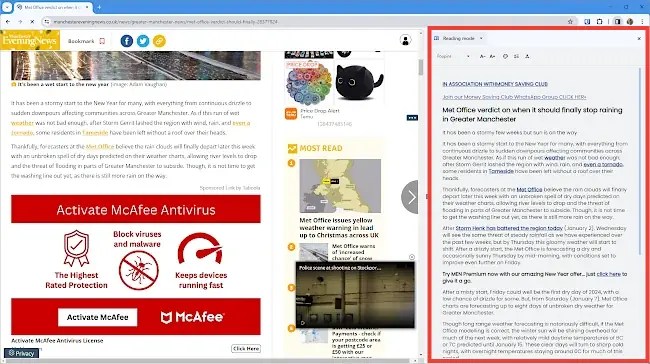
Go to any web page and the original content is displayed on the left and the text and links, with images and web junk stripped out, is displayed on in the panel on the right. It is not useful to do this on the home page of a website, because it mainly contains menus and links. It is intended to show the content of web articles, minus the clutter.
It makes a huge difference to the readability of a web page. Look at the screenshot above. You can’t see the content for the ads and web clutter, but on the right is a simple, clean display of the text. Brilliant! Below is a close-up of the reading mode side panel.
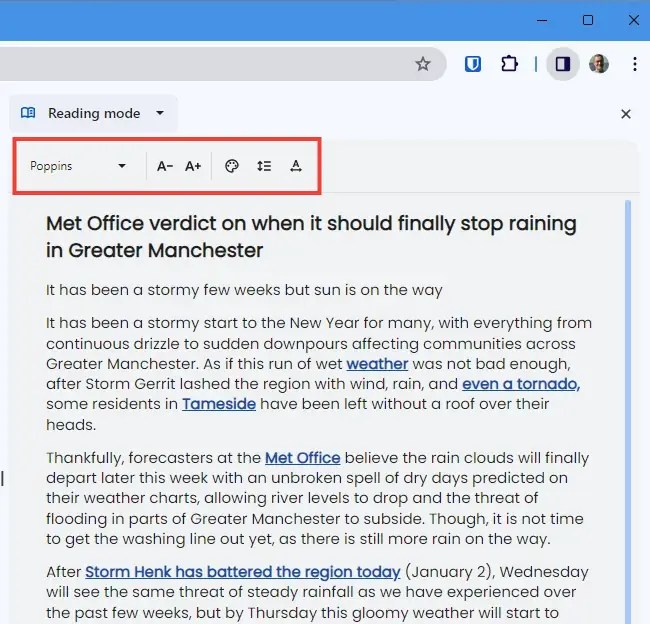
Move the mouse over the divider between web page and reading mode panel and click and drag it to make the panel larger or smaller.
The reading mode panel shows text and web links, and not much else. All the junk is hidden. This makes web articles so much easier to read and there are no distractions. If you need to see an image, it can be seen on the left in the original web view.
Customize Chrome reading mode view
The toolbar at the top of the reading mode panel enables the view to be customized. Click the font button to select a font. It might seem like a small font selection, but the aim is not to style the text in a hundred different ways, but to make the text easy to read on the screen. The handful of fonts are sufficient. Choose your favorite.

Use the A- and A+ buttons to decrease or increase the size of the text to make it comfortable to read.
Click the color palette icon to show a small selection of background colors. It can be dark, light, yellow or blue. Choose the color that is most comfortable for your eyes.

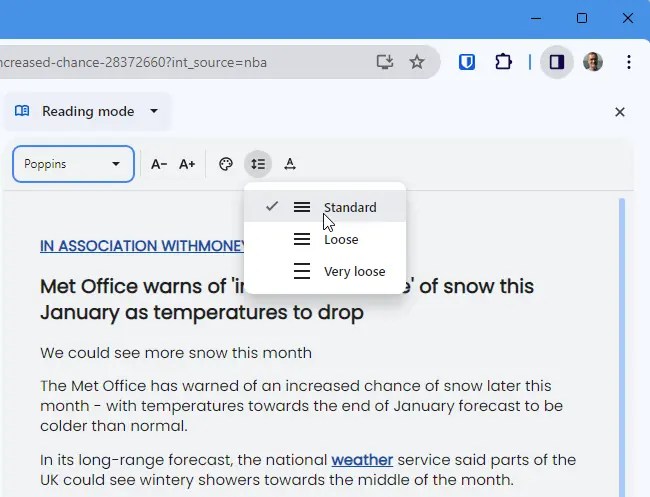
The last two buttons in the toolbar are used to set the line spacing and character spacing. Click them and choose an option like Standard, Loose or Very loose line spacing or Standard, Wide or Very wide for the character spacing. Whichever you prefer.
The reading mode panel is a great feature in Chrome. You can often browse websites using just the reading mode panel because links shown in the panel are clickable. You don’t see every link on the page, because only links within the text are shown, not menus.
An alternative way to use the reading mode panel is to click and drag over content in a web page. This displays the text content of the selection in the reading mode panel, rather than the whole web page. That can be useful on occasions.
 RAWinfopages