
Microsoft To Do is a great app for creating lists and to-do tasks. If you need to set a due date for a task, there is a quick way to do it that saves you time and effort. Get to know it.
Whether you use the app on a computer, iPhone, or Android phone, (not the website though), there is a quick way to add due dates for tasks to be completed. It can save a bit of time and effort, and it is a bit more convenient than opening the task and using the options to set a due date. The trick is to add the date to the end of a task title as you enter it.
All you need to do is to set a couple of options in the app’s settings, and then enter new task titles in a certain way. Let’s take a look. I will be using screenshots from the Android phone version of Microsoft To Do, but the method also works on the iPhone, Windows PC and Apple Mac apps.
Microsoft To Do settings
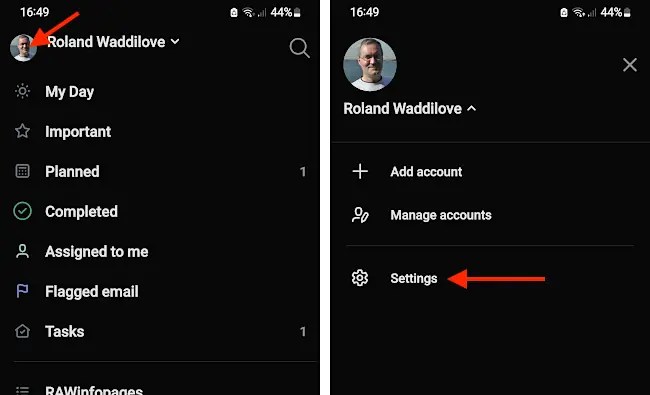
Open the Microsoft To Do app, press or click your account picture in the top left corner and then press or click Settings. The Android phone app is shown here, but iOS, Windows, and macOS are similar.
Enable time and date recognition
Look for the option to recognize times and dates in task titles and enable it. Also, enable the option to remove dates and times in task titles when they are recognized. This second option is not essential, but it cleans up task titles nicely.
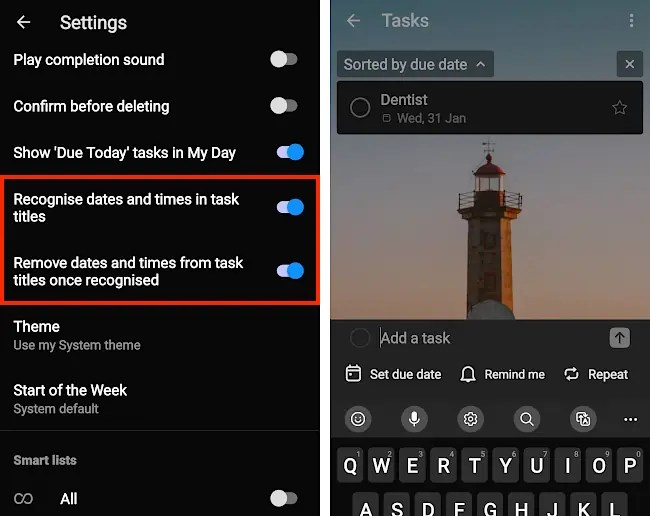
Quit settings and return to the To Do app. Select any list, such as Tasks, and press the button to add a new task. You are ready to try date and time recognition in task titles.
Include due dates in task titles.
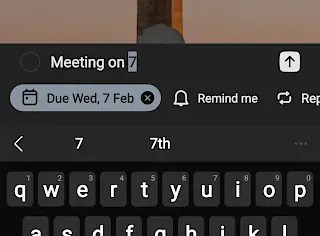
When a new task is entered, To Do looks for a number. It treats the first number it finds as a date, so if you entered “Meeting on 7” it would suggest the next 7th in the calendar. This could be the 7th of this month or next month, depending on today’s date. You can see this in the screenshot below, where it has highlighted the 7, and underneath it says Due Wed 7 Feb.
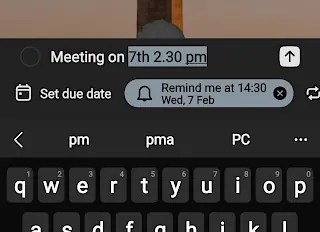
What if you want to set a time that a task is due? Continue typing the title and add the time like this “Meeting on 7th 2.30 pm”. (PM or AM after a number make it a time instead of a date.) It now highlights Remind me at 14.30 Wed 7 Feb.
You can also enter the month into the title to set the due date or reminder more than one month ahead. So if you wanted to set a task for three months from now, you would enter Jan, Feb, Mar, Apr or whatever the month is.
The highlighted part of the task title, which includes the date and time, is what is automatically removed when the task is created. This leaves “Meeting on” in the example above, which is weird, so it is better not to enter anything before the date or time.
Just enter “Meeting 7th Feb 2.30 PM” and the task title becomes “Meeting”. The date and time are automatically set and removed from the title.

This is a useful time-saving trick when creating tasks in Microsoft To Do. Try experimenting with different wording for the time and date. For example, try this: “Pay tax bill by Wed 5pm”. It will set a task with a due date or reminder next Wednesday at 5 PM. (Unlike ‘on’, ‘by’ is automatically removed.) If you entered “Pay tax bill 5pm”, then without a date, then today is assumed and a reminder set.
 RAWinfopages