
When you want to show photos you have saved to iCloud using an iPhone or Apple Mac, create an iCloud link that anyone can use. Share iCloud photo links with anyone. No account is needed.
If you have an iPhone, or a camera and a Mac, you probably store your photos in the Apple Photos app. The default setup that most people use is to upload your photos to iCloud online storage so that they can be synced and viewed on any Apple device.
Photos stored online in iCloud are safe and secure, and no one else can access them. However, there may be some photos that you would like to share with other people. There are several ways to do this, such as emailing them, using Messages, sharing albums, and so on, but another option is to share them through iCloud.
A fairly recent addition to iCloud and the Photos app is the ability to create a publicly shareable link to a photo stored online. Anyone you give the URL to can view the photo, download it, or save it to their own iCloud photos. However, they don’t need an Apple account to view the shared photo.
Let’s look at how this works on the Apple Mac first, then the iPhone. Make sure you have the latest OS updates.
Related: See all photography articles on RAWinfopages
Create an iCloud link
Open the Photos app on the Apple Mac and click a photo to view it. Click the Share button in the toolbar at the top of the window and then select Copy iCloud Link.

It is possible to share multiple photos by selecting a photo thumbnail in your library, and then Cmd+clicking others to add to the selection. I will continue with just one photo.
You can share the link with anyone you like in any way you want. Email it to someone, send it using Messages or WhatsApp, post it online on your website, or in a comment on someone else’s site. It is up to you.
View shared iCloud photos
When someone receives a link to a shared iCloud photo and visits it in a browser, they see a large image and a thumbnail. Multiple thumbnails if you share multiple images.
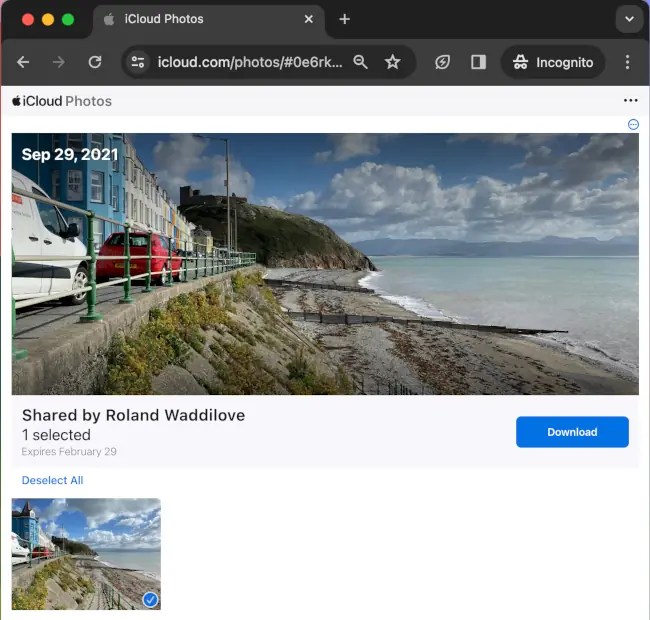
Shared photos have a limited life and they are live for 30 days only, then they are automatically unshared by iCloud. Bear this in mind – people won’t be able to see it in two months time.
Save shared iCloud photos
If the person viewing the shared iCloud photo is not logged into iCloud or does not have an Apple account, there is a download button to save it to the computer or phone.

Click it and there is an option for Apple users to sign in to iCloud and import the image to their own Photos library. There is also an option to download the photo for non-Apple users.
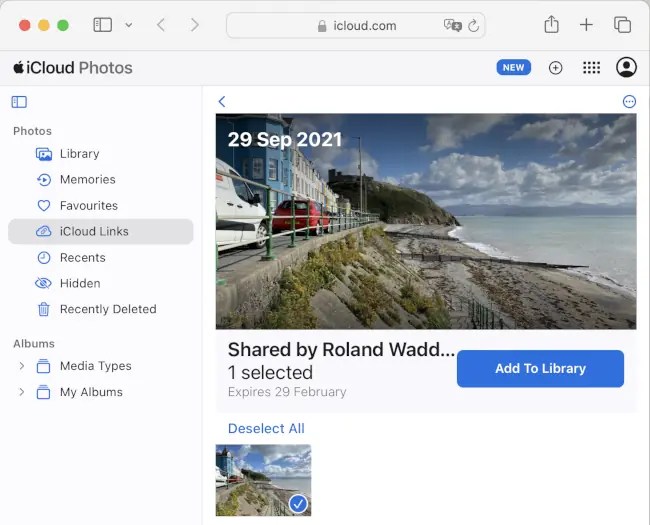
If the person is an Apple user and logged in, instead of a Download button, there is an Add To Library button. It then appears in their library photo feed like any other photo.
Stop sharing iCloud photos
As mentioned earlier, photos shared through iCloud links are only live for 30 days. The link then expires and the photo is no longer viewable. In the light gray text under each photo thumbnail is the expiry date.

If you want to stop sharing sooner, open the Photos app and select iCloud Links in the sidebar. All the photos currently being shared are displayed as thumbnails.
Move the mouse over a shared image and click the three-dots button to display a menu. You can copy the iCloud link again, so you can share the photo with more people, or you can stop sharing the photo.
Share iCloud photos on the iPhone
You can share photos through iCloud just as easily on the iPhone. The procedure is exactly the same, and the only difference is the that you are using iOS and not macOS.
Open the Photos app, browse the photo library and select or open a photo. Press the Share button at the bottom of the screen to access the sharing options.

You cannot immediately see the iCloud link option you need because it is off the bottom of the screen. Swipe up over the visible sharing options to reveal the full list. You can then press the Copy iCloud Link option. The URL is copied to the clipboard and you can then paste it wherever you want, like an email, Messages, on the web, and so on.
 RAWinfopages