
OneNote is a handy way to store notes, checklists, and bits of information you want to remember. Here’s how to create a family OneNote notebook that everyone can access. Share your notes!
Microsoft’s note-taking app is available everywhere. It is on Windows PC, Apple Mac, iPhone, and Android phones. It is also free, so there is no excuse for not having it. It is one of the best free note apps around.
Notes are automatically synced between devices, so you can create a note on a PC, and access it on an iPhone, for example. A shared family notebook is also synced between family members, no matter what device they have, so it is great for storing shopping lists, to-do lists, tasks, home projects, and information everyone needs to know.
The one thing that you need to use OneNote is a Microsoft account, and you can get one for free if you don’t already have one.
Shared family notebooks are not an obvious feature of the notes app, so even if you are a long-time user, you may not realize that it has this feature. It is worth taking a close look at it.
I am not sure whether you can set one up entirely from within the app. I will show you the method I used.
Related: Add colorful picture backgrounds to Google Keep notes
Microsoft account family settings
Open a web browser on a PC or Mac and go to account.microsoft.com. You can also click your avatar in the top right corner of any Microsoft service, like OneDrive or Outlook.

Scroll down the page until you see the Family tile, and then click it to go to the Family section of your account.

If you have not already done so, click the plus button to add family members, like your partner, children, parents, or whoever you want to include. They must have a Microsoft account, and they receive an email inviting them to join, which they must accept.
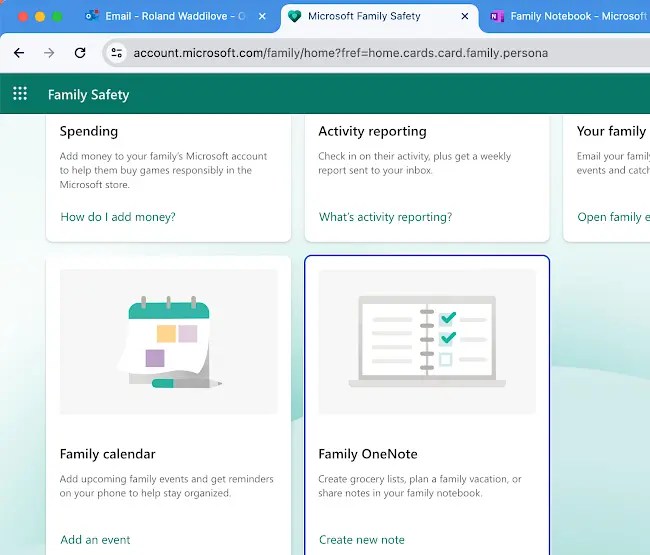
Right down at the bottom of the Family Safety page is a Family OneNote tile. Find it and click it to create a family shared OneNote notebook.
Use your shared family notebook
Family Notebook appears in the web browser. We will see how to access it in the app in a bit, but initially, it opens in a browser. It has all the features of the app, so it should be familiar to you.
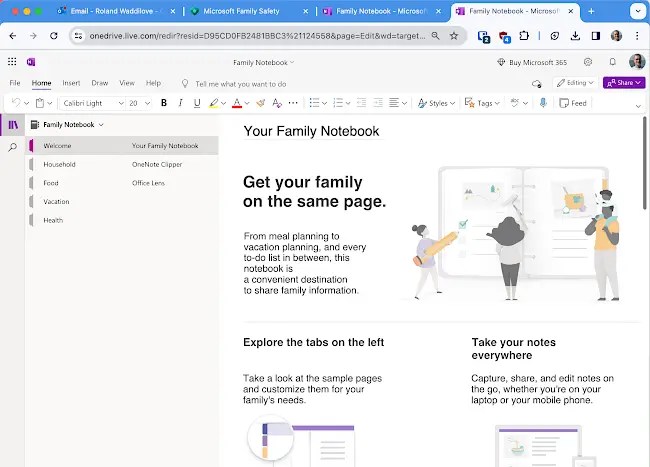
The notebook contains a lot of example content, and it is worth spending a few minutes looking through it because it shows many possible use cases.
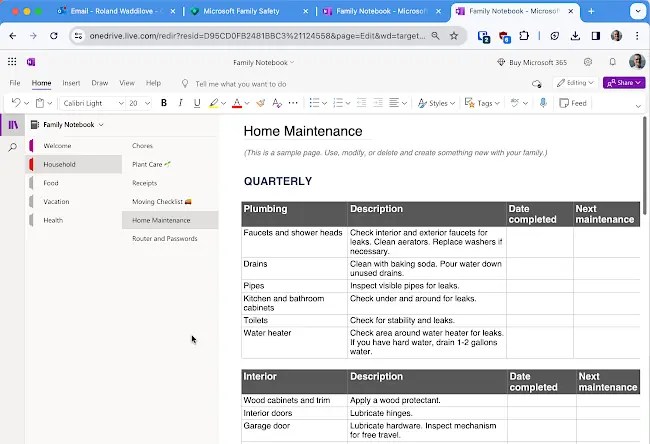
The content is organized into sections titled Welcome, Household, Food, Vacation and Health. If you are familiar with OneNote, you will know all the different types of content that can be stored in it.
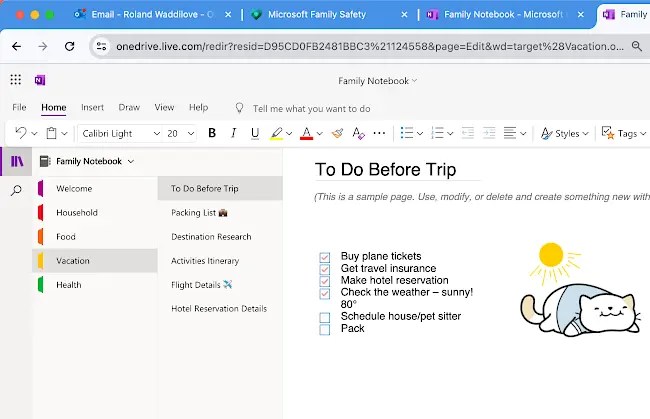
If you are new, check out the sample pages. You can use them as is, modify them, or delete them and create your own pages.
Family access to a OneNote notebook
You created the OneNote notebook, so it is easy and obvious how to access it. Whether you use the web app, computer, or phone app, you can view notebooks and select one to open, like your personal or work notebook. How do your family members access the shared notebook?

I don’t know if this is the only way, but if a family member visits OneDrive in a browser and selects Shared in the sidebar, the Family Notebook is listed as a shared item. Click it, and it opens in their browser just as it did for you. They have full access and can view, add, and delete items the same as you can.
How do you access the Family Notebook in the app? After opening it for the first time in a browser through OneDrive, it can then be found by selecting Recent when you go to open a notebook in the app.

Once opened elsewhere, it also appears in the Recent list in the iPhone or Android phone app – tap the back button to show a list of your notebooks, and then tap More Notebooks to see the Recent list and notebooks in your OneDrive storage. You can then open the notebook on your phone.
 RAWinfopages