
If you have thousands of photos in Apple Photos that are stored in iCloud, how do you export them if you want to move to another photo storage system? Export your Photos library. Here’s how.
There are people with 10,000+ photos in their photo library, and it uses tens or even hundreds of gigabytes of storage. The problem is that it presents a problem if you ever want to move to a different photo storage system. Some people would rather store their photos locally, like on an external drive. How do you get your photos out of the Photos app or iCloud?
There are several ways to export photos from your iCloud Photos library, and some are good, and others are not so good. I will look at some different methods, point out the pros and cons, and look at the best method if your photo library is huge. The last method works on both an Apple Mac and a Windows PC.
Related: See all photography articles on RAWinfopages
Export photos from Photos
If you want to export a few photos from Apple Photos, it can easily be done within the app:
- Open Photos on the Mac and select the library.
- Click the first photo you want to export.
- Hold down Shift and click another photo in the library to select all photos between them.
- Select File > Export to save the photos anywhere you choose on the drive.
This is fine for a few hundred photos, but I’m not sure that you could export tens of gigabytes of photos in a large photo library. You could select 500 photos at a time for export, then repeat with the next 500, but this is not a good way to export large libraries.
Export photos from iCloud
A similar method can be used on the iCloud website, and it is possible to download photos.
- Go to the icloud.com website and click Photos.
- Click the first photo to select it.
- Shift+click another photo to select all photos between them.
- Click the Download button in the top right corner to save the photos to disk.
This method is fine for small numbers of photos, like a few hundred, but not for thousands. Click a photo in Photos on the iCloud website and press Cmd+A to select them all. Then click the Download button. It will probably choke on the request.
Export your data stored by Apple
This last method is the one to use when your photo library is large. Apple provides a website that enables you to download all the data it has stored about you. It includes bookmarks, contacts, calendars, reminders, maps, emails, photos, and more. Let’s take a look. This method works on a Windows PC as well as an Apple Mac.
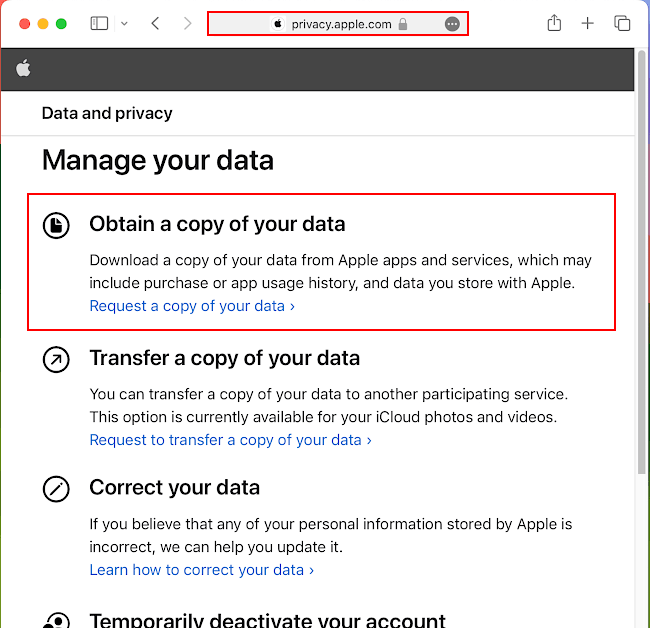
Go to privacy.apple.com in a web browser and log in to the site with your Apple ID. There are several options listed under Manage your data. In the Obtain a copy of your data section, click the link Request a copy of your data.

The next page contains a long list of all the things that Apple has stored in your account. There is quite a lot. Scroll the page to get to the iCloud Photos section, and tick the checkbox on the right to select it. None of the other items matter, so leave them unchecked. Click the Continue button at the bottom of the page.

You likely have many gigabytes of photos, and some people have more than 100 GB. That would be a huge download. It would also be impossible on a slow or poor internet connection, so the photo library is conveniently split into smaller chunks that are downloaded separately.
Select the size of each chunk from the menu. Small chunks are better for slow or poor internet connections, but large chunks are best for fast, good connections.
Click Complete request to finish. Now you must wait up to two weeks for Apple to prepare your photos for downloading. You will receive an email at the address registered with your Apple account when they are ready, so keep an eye on your inbox. When it arrives, you can begin downloading your photo collection.
 RAWinfopages