Privacy and security on the internet are a big deal these days and Microsoft aims to help by including a free VPN in its web browser. It has unusual features and is unlike other VPNs.
Microsoft is continuing to boost Edge browser by adding new features and you may find some useful, but others not so useful. The inclusion of a free VPN is bound to be popular. Although many people already have VPNs, they are usually subscription services and the number of free VPNs is limited. Microsoft’s is a welcome addition.
The problem with free VPNs is that they can be too popular. Supporting large numbers of users costs the VPN provider money and so there needs to be some way of limiting the freeloaders who might try to over-use the service.
Microsoft Edge VPN limits
Some VPN providers limit the speed, others limit the amount of data. Microsoft free VPN in Edge limits the amount of data in two ways. One is the amount of data that can be transferred each month. You are allocated 5 GB data per month. This is not the best, but nor is it the worst. It is a reasonable amount.
That 5 GB of VPN data will actually go a long way because of the other way that Microsoft limits the VPN service. It only works with certain websites. The VPN is not enabled all the time and it is automatically turned on and off depending on the circumstances.
Click the three dots in the top right corner of the browser to open the menu and select Settings. In the sidebar, select Privacy, search, and services. Scroll through the settings and find the Microsoft Edge Secure Network section. (Only on PC right now, but probably on Mac soon.)
There are two opions, Select Sites and Optimized. Turn on the master on/off switch at the top.
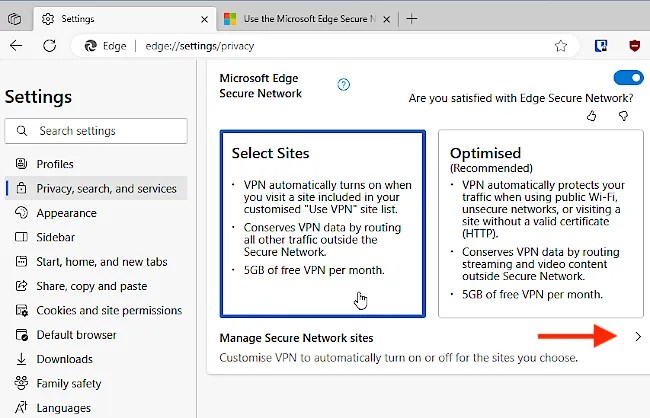
Optimized: Edge looks at the Wi-Fi network and if it is public or insecure, it automatically enables the VPN. However, it does not stream video and other content through the VPN. This means that if you are using public Wi-Fi, like a hotel, airport, cafe and so on, you can safely shop, bank and perform other activities that require security and privacy.
Select Sites: You can create a list of websites for which the VPN is active. Any site not on the list is not protected and is accessed in the normal way. There are two ways to specify websites to be secured by the VPN. On way is to click Manage Secure Network sites.
There are two sections on the next page, Always use Secure network… and Never use Secure Network. Click the Add a site button to add a website to either list. The full URL is not necessary and you can simply add the domain, like amazon.com to protect the site. The Remove all buttons clear the lists, but you can edit or remove single sites by clicking the three dots on the right to show a menu.
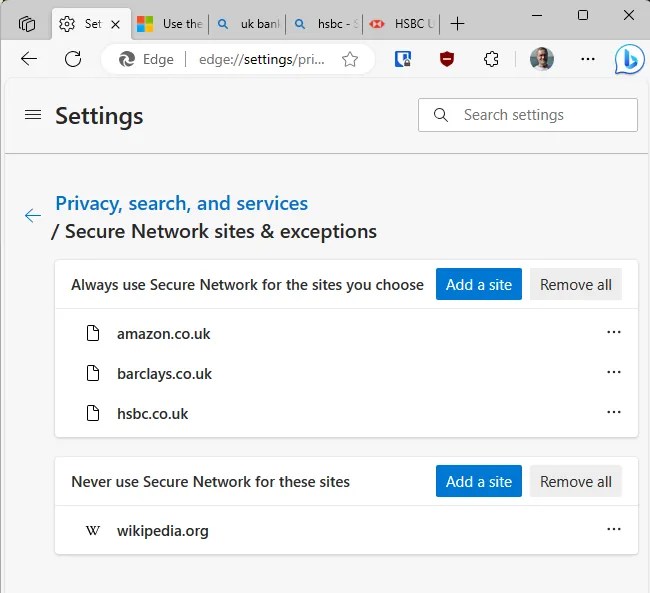
A good way to use Secure Network sites & exceptions, is to add banking, shopping and other sites that require security. Although they are always secure https sites anyway, you can’t be too careful and a VPN is useful, especially with public Wi-Fi.
Related: Why Microsoft Edge is the best browser for mobile phones, and How to stop Microsoft Edge spying on Chrome browsing data
Monitor Edge VPN usage
Edge VPN will no doubt change over time and right now in this early release is a big problem. Unless I have missed something, you cannot tell whether the VPN is on or off, so you don’t know whether you are protected. Opera browser’s free VPN makes it clear by showing the VPN status before the URL in the address box, but I can’t see anything in Edge. I expect an update will fix this, so ignore my complaint if it has been added.
The only way to see if Edge VPN is working is to open the Browser Essentials panel on the right. Enable it by selecting it in Edge’s menu or go to Settings > Appearance and enable the toolbar button.
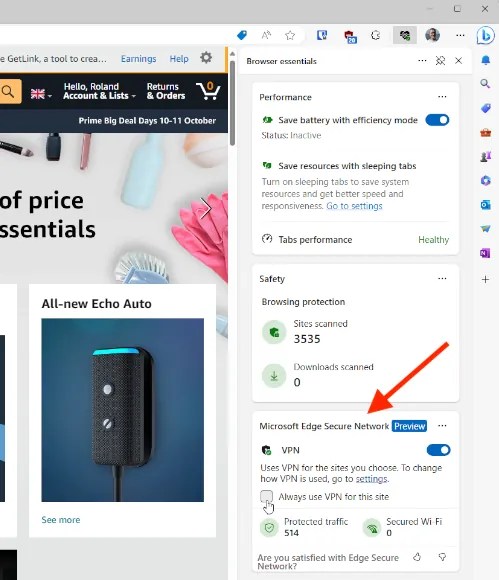
The Browser Essentials panel, which is too large to keep open all the time, shows several cards and the bottom one is Microsoft Edge Secure Network. There is a master on/off switch and a checkbox to Always use VPN for this site. This is another way to add a website to the Secure Network sites & exceptions list we saw earlier in Settings.
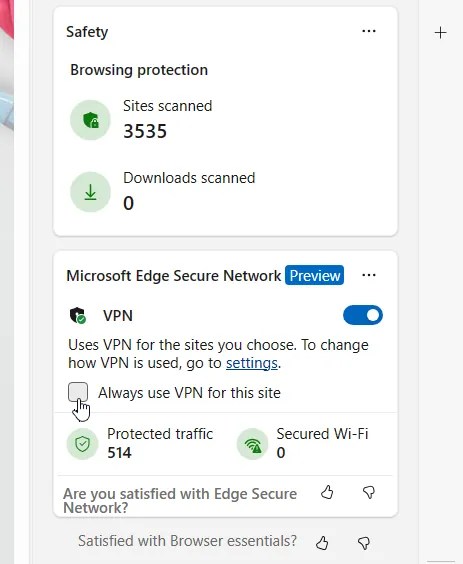
When the VPN is active, the Protected traffic figure rapidly increases as a web page loads and fetches HTML, images, and other content. It is the amount of data used this month and you have 5 GB for free.
The Secured Wi-Fi figure is the number of insecure networks you have connected to. If you only ever use secure Wi-Fi at home or work, this figure will be zero, but if you use public Wi-Fi hotspots, and they are insecure, you will see it increase.
Is Edge free VPN worth it?
If you don’t have a VPN on your computer, Edge VPN is useful. Bear in mind that it only protects Edge web browsing and not other software that uses the internet, like email software, video streaming and so on.
I prefer a VPN service that I can turn on and off as required. Proton VPN is a good free alternative to Edge VPN. Microsoft’s VPN service is provided by Cloudflare and I think Cloudflare Warp is better because it offers more comprehensive protection for free.
Edge VPN is OK, but check out the alternatives.
 RAWinfopages