
Web browsing on a phone always seems slow, despite the progression From 3G to 4G and now 5G. What can you do to speed it up? Enable page preloading in Chrome to fetch pages before you need them.
The web was designed to be a collection of interconnected pages, and pages link to other pages. Search the web and you get a page of links. Click a link to go to a website or a page on it and there are more links to pages on and off the site.
It takes time to fetch web pages and display them, especially on a phone, and one way to speed up the process is to preload web pages.
While you are reading a web page or looking at search results and deciding what to visit, Chrome can look at the links and load them in the background, just in case you want them. Then when you tap a link to visit a site or page, it can be displayed much faster because Chrome has already preloaded it.
Not every link can be preloaded because there are often many on a web page or search results, so only the links you are most likely to visit are preloaded. If Chrome correctly guessed the link you want and preloaded it, it is displayed faster, but if you tap a link Chrome didn’t think you wanted to visit, it loads at normal speed.
There is no downside to this and tapping a link to visit a website is either the same or faster. It cannit be slower. However, you need to bear in mind mobile data usage on your phone and there are different settings for preloading web links.
Let’s take a look at how it works on an Android phone. This feature is not on Chrome for iOS, but that may change in the future.
Related: How to stop Microsoft Edge spying on Chrome browsing data
1 Chrome menu

Open Chrome on your phone and press the three dots in the top right corner to open the menu. Then press Settings. We will need to configure some options.
2 Chrome settings

Look down the list of items on the Chrome Settings screen and press Privacy and security. It probably isn’t a place you would look for a feature like this, but that’s where it is.
3 Chrome privacy and security
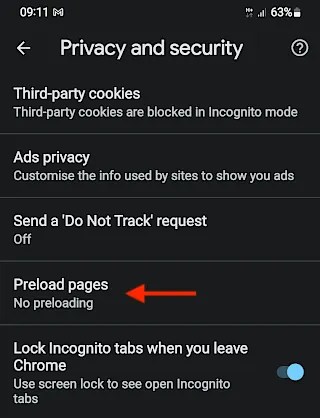
In the Privacy and security section is a Preload pages option. This is set to no preloading by default, so you are not getting any speed benefit. Press it to configure it.
4 Chrome preload pages setting

There are three options and No preloading is the default. Speed up web browsing on your phone by selecting either Standard preloading or Extended preloading.
What is the difference between standard and extended preloading? With the standard setting, Chrome preloads only the pages it thinks you are most likely to visit.
With extended preloading, Chrome loads more pages in the background. This means that it is more likely to have preloaded a page when you tap a link to visit it, and so browsing the web is faster. However, fetching a lot of web pages in the background will use more mobile data. Wi-Fi is unlimited of course, but on mobile data, keep an eye on your usage with the extended option.
When pages are preloaded, Google encrypts them and this is for privacy reasons. One is to hide your identity from the preloaded site and the other is to hide the content of preloaded pages from Google. This is important because if a page has links to bad content you would never view, you don’t want it to seem like you looked at it because of preloading. Google does learn which sites are preloaded, but not what is on them.
The standard preloading option is a good choice and there is some preloading, but it does not go overboard and preload everything. On those occasions when you tap a preloaded link, it will be faster, and we all want a faster web.
 RAWinfopages