
Select your favorite photos and show them as a slide show on the lock screen on your Windows 11 computer. Show it when you start your computer or lock it. Personalize your PC your way.
When you start your computer, wouldn’t it be great to see a slide show of your best photos on the screen when you get ready to log in for the first time each day? It would also be nice to see your photos when you lock the computer to take a break. The images can be fun, then can be inspiring, or they just remind you of your nearest and dearest.
Showing a photo slide show on the lock screen is not a new feature in Windows, but many people had problems with it in the past. There is a long discussion thread on Microsoft Answers forum from people that have struggled and failed to get it to work.
One problem that people have had is that the lock screen slide show would not be displayed when the computer was started. The reason for this is that the screen you see after turning on a Windows PC is not the Lock screen. It is the sign-in screen.
Each user of a computer can have their own personal account and their own personalization settings. Windows cannot display a lock screen slide show before anyone has signed into Windows. Which user’s should it display?
I think that Microsoft has finally sorted out the problems and lock screen slide shows finally work. They also work on the sign-in screen too. You can show a photo slide show when you start your computer and when you lock it, such as by pressing Windows+L.
I am running Windows 11 public beta, so if you don’t have the same features as me, check for Windows updates. If you still don’t see these features, you soon will as they will roll out to everyone eventually.
Related: Erase the background in Microsoft Paint, replace it with another
1 Create a folder or photos
You probably don’t want all the photos on your computer showing on the lock screen. That could be embarrassing. It is best to create a folder of images that you want to show. Open the Pictures folder on your PC and create a folder. The name does not matter, and I called mine Wallpaper, but Lock Screen Photos is an obvious name you could use.
2 Windows settings

Open the Windows Settings app by pressing Windows+I. Select Personalization on the left and then Lock screen on the right.
3 Personalization settings

in the Lock screen section is a menu to the right of Personalize your lock screen. It is probably set to either Picture or Windows spotlight. Click it and select Slideshow. This enables us to show photos as a slideshow.
4 Select photo folders
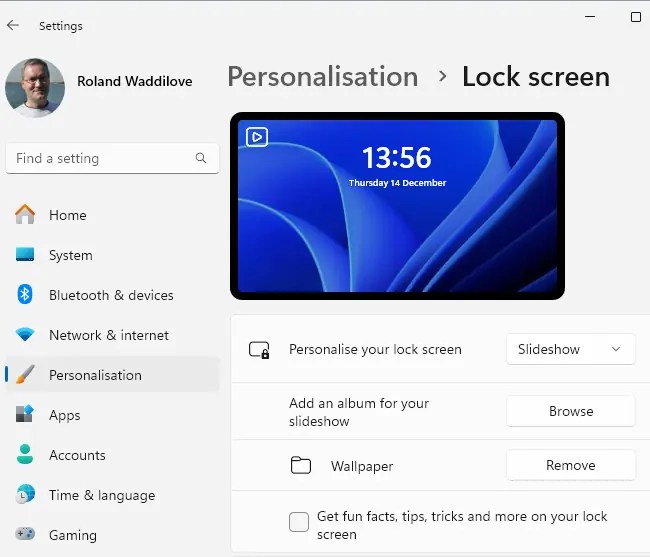
New options appear that are appropriate for a slideshow. Click the Browse button next to Add an album for your slideshow. Select the folder that you created in the Pictures folder earlier containing the photos to show.
More than one folder can be added and even photo albums can be added. Let’s keep it simple and just use one folder for now. You can return and add more folders or albums later.
Advanced slide show options
Look a bit further down the Lock screen settings to the Advanced slideshow settings and expand it to show all the options if necessary. They control when a slideshow is displayed and what it shows. For example, if you have a Windows laptop computer and don’t see the slideshow, select the option Play a slideshow when using battery power.

Another option that affects whether photos appear is Only use pictures that fit my screen. An obvious example when this is selected, is photos in portrait mode. They might not appear because they are the wrong shape. Clear the option to show all photos.
Other settings like screen blanking for power saving can affect the display of photos. You might not want the slideshow to run forever and run down a laptop battery, so there is an option to turn off the screen after a certain time.
As I mentioned earlier, when the computer is started, the screen you see is the sign-in screen and not the Lock screen. Turn on the option at the bottom to Show the lock screen background picture on the sign-in screen.
You can try all these settings immediately by pressing Windows+L to lock the screen. I find that the photos change every 15 seconds. I bet there is a registry setting to set this, but 15 seconds is fine for me.
The first image shown in the slideshow is the default Windows wallpaper. You must wait 15 seconds for the first of your photos in the slideshow to appear. It looks like the slideshow isn’t working but wait and it begins. Every so often, maybe when it gets to the last photo, it shows a montage of images.
Finally, lock screen slide shows are working!
 RAWinfopages