
Do you use an AI image generator? What software do you use? I bet you don’t use Microsoft Paint! Yes, this nearly 30-year-old Windows tool can now generate AI images! Just say what you want!
Microsoft has invested heavily in AI and has been inserting it wherever it can in Windows, software, and services. You might not have expected to see it in Microsoft Paint, which is almost 30 years old. This simple paint program and image editor not only refuses to die, but it is thriving and has been gaining a lot of new features recently.
I looked at the ability to create images by building them from stacking multiple layers in Erase the background in Microsoft Paint, replace it with another. Here I will look at the AI image generator Cocreator, which is a new feature, but it is hardly surprising given that Microsoft has gone all-out on AI.
Cocreator in Microsoft Paint is powered by DALL-E, a text-to-image generator built by OpenAI. The way it works is, that you describe an image that you want in plain text, and then it creates it for you. It takes just seconds to create images, and they can be in various styles.
This is a new feature in Microsoft Paint and not everyone has it yet, so if you don’t see it on your Windows PC, keep checking for updates. You will get it sooner or later.
Get started with Cocreator in Paint
Open Microsoft Paint on your computer. It can be downloaded from the Microsoft Store if you don’t have it, but most people should find it already on the Start menu. I press Windows+R and type ‘mspaint’ to run it.

A Cocreator button is on the right side of the ribbon toolbar. Click it, and the first time it is used, you will see an introduction and tips. Click the Next button to continue.
The Cocreator panel in Paint
The Cocreator panel opens on the right side of the Paint window. At the top, it tells you to describe what you would like to create. Below is a Choose your style section and at the bottom is a Create button.
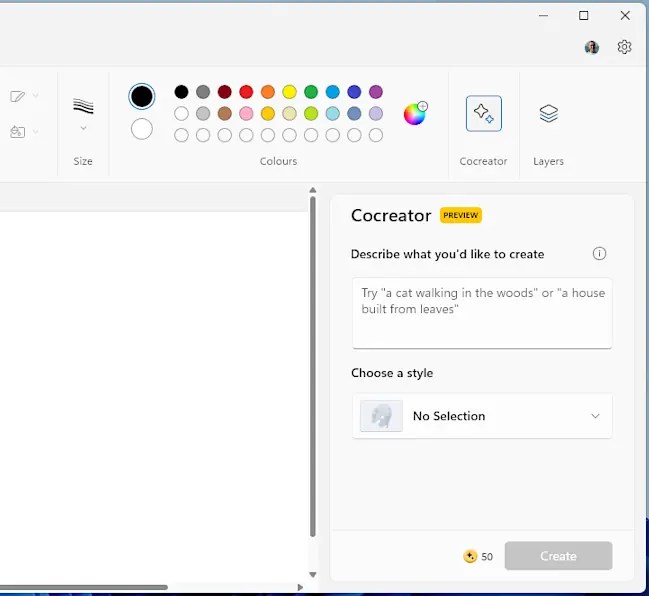
Just to the left of the Create button at the bottom of the Cocreator panel is an icon and the number 50. This means I have 50 credits for Cocreator use. Creating an image uses one credit. I don’t know what happens when this runs out. I hope that we will receive a few free credits each month and an option to pay for more for those that need it.
Choose an image style
Avoid wasting your credits by clicking the Choose a style button and select a style for the image before you generate one. When I tried it, there was Charcoal, Ink Sketch, Watercolor, Oil Painting, Digital Art, Photorealistic, Anime, and Pixel Art. The styles may change in the future though.
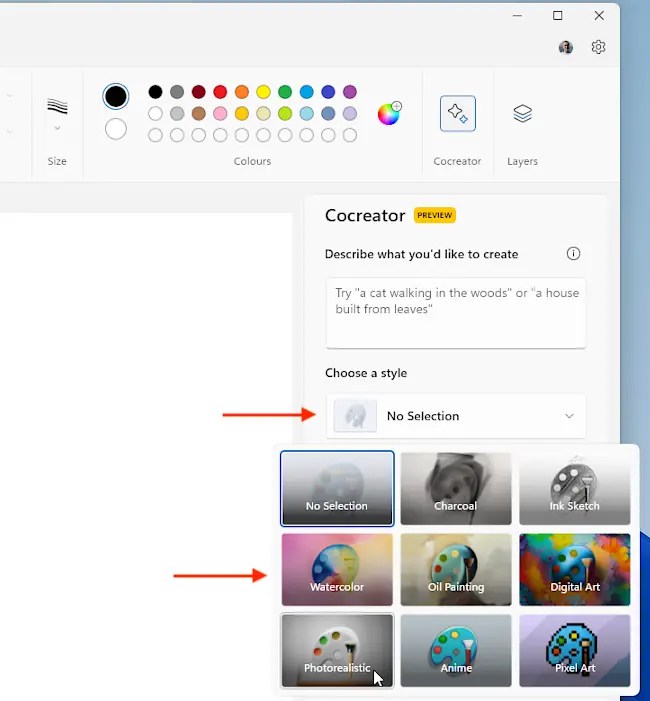
Enter a description for the image. It suggests “A cat walking in the woods” or “A house built from leaves.” I entered “A person using a laptop computer in a cafe.” Think about what you want carefully.
Although you can try different descriptions, tweak descriptions, and generate new images, you don’t want to waste your credits. Make sure the description is right before you click the Create button so you only use one credit.
Three Cocreator images
Cocreator generates three images (for one credit), and they are displayed as thumbnail images in the panel. They are variations of the image you described in the text.

Click the thumbnail you want to use to paste it into the current image. It is added as a selection, so you can do the usual things that a selection allows, like move it, and resize it.
Cocreator image options
Let the mouse hover over a thumbnail in the Cocreator panel and a three dots button appears. Click it to show a menu. Each of the images can be saved to disk separately.

Although you only get 50 credits, you can create and save three variations of each one, so 150 in total.
Add Cocreator images to layers
Clicking a thumbnail pastes the Cocreator image into the current image. If the image has multiple layers, the image is pasted into the current layer.
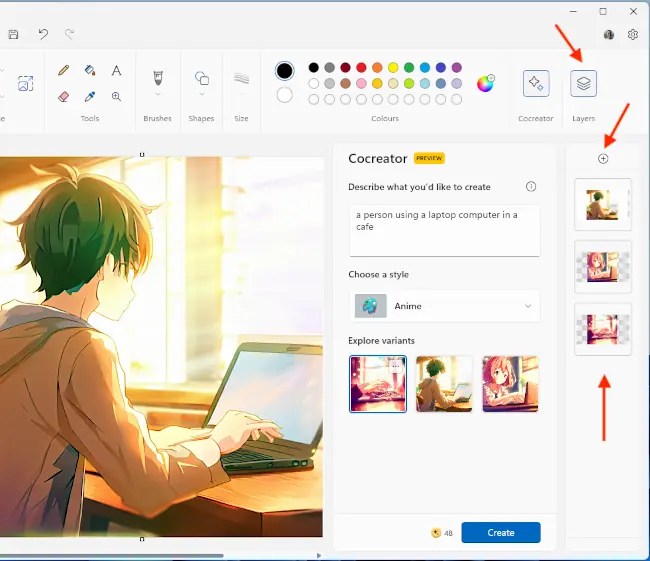
Click the Layers button in the toolbar, click the plus button to add three layers, then select each layer and paste one of the images on it. You now have an image with the three Cocreator AI-generated images on three layers.
Who would have thought not so long ago that you would be able to create AI-generated images in Microsoft Paint? Times have changed! Is it the best? I am not sure about that, but it is certainly interesting, and it is an easy way to generate AI artwork.
 RAWinfopages